1. What HMM Trade does
HMM Trade reads what the market is doing right now — calm, choppy, or panicking — and adjusts how its bots trade for that mood. The goal is steadier results across changing conditions, not bigger wins in a good one. Think of it as a risk-aware autopilot, not a crystal ball.
Every bot you launch runs in the cloud, places trades through your own Alpaca account, and writes everything it does to an audit log you can read line by line. Want the underlying math? See architecture.
2. Set up paper trading
Three steps: create your HMM Trade account, connect a free Alpaca paper account, then launch your first bot. About five minutes total.
2a. Create your account
Sign up at /signup with email or Google. The free plan gives you one hosted paper bot for 30 days — no credit card needed. You can upgrade to Pro any time on the pricing page.
2b. Connect an Alpaca paper account
Alpaca is the brokerage. HMM Trade places trades through your Alpaca account, so you need one before a bot can do anything. Paper accounts are free and skip identity checks — you get $100,000 of fake money to practice with.
- Sign up at app.alpaca.markets/signup and verify your email. New accounts default to paper trading, which is all you need.
- In the Alpaca dashboard, open Manage Accounts from the account dropdown. Each paper account has an API Keys panel — click Regenerate to get a key pair. Copy the Key and Secret somewhere safe. Alpaca only shows the secret once.
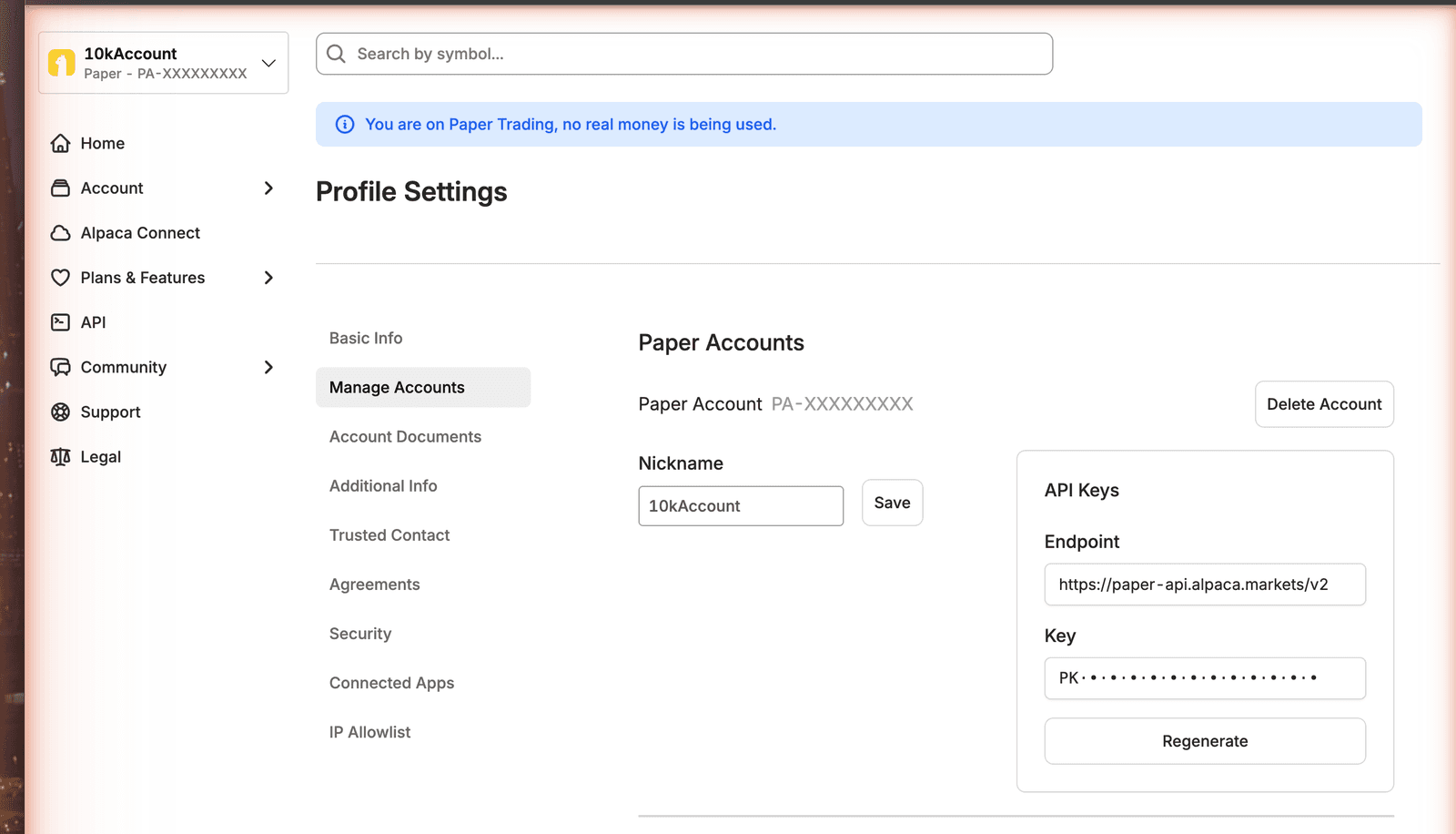
Copy the Key and the secret you see at generation time. You'll paste both into HMM Trade next.
2c. Connect them on HMM Trade
Open /brokers and click Connect Alpaca. Give the connection a label you'll recognize later (“Personal Paper” works), leave Mode on Paper, and paste the Key and Secret. We validate the keys with Alpaca before saving — if something's off, you'll know immediately.
Your secret is encrypted before we store it and never shown again. Read more in the architecture doc.
2d. Launch your first bot
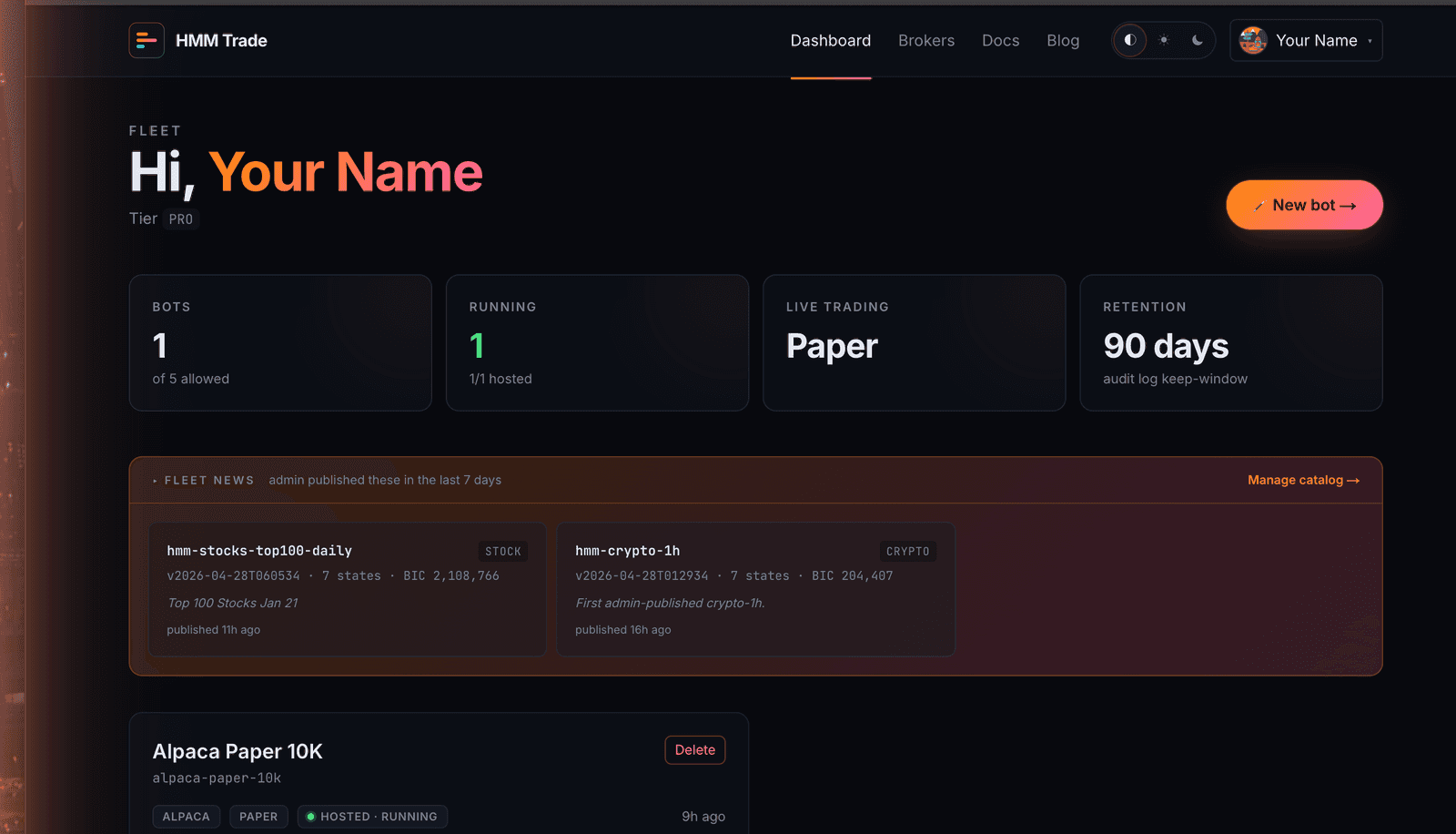
Back on the dashboard, click + New bot. The wizard takes about a minute:
- Name the bot and set a starting capital — the dollar budget this bot manages, even if your broker account has more.
- Pick the Alpaca connection you just added.
- Choose a universe. The recommended option has two independent dials — top-N stocks (0–100) and top-N crypto (0–10). Leave both at the defaults for a mixed basket, or zero one out for stocks-only / crypto-only.
- Pick a risk profile — see §3 below.
- Pick HMM models per asset class. Leave every row on track defaultfor your first bot — you're subscribing to the admin-published default model and will auto-update when it's republished. Pinning a specific version is a Pro feature.
- Skip the optional features for now.
- Review and create.
3. Pick a risk profile
Step 4 of the wizard offers three presets. They control how much of your account each trade can use, how much leverage is allowed, and when the bot stops for the day after losses.
- Conservative— small positions, no leverage, tight daily loss limit. Use this when you're trading real money.
- Balanced (default) — sensible defaults for paper testing.
- Aggressive — bigger positions, more leverage, looser limits. Stress-tests the bot. Not appropriate for live money.
You can fine-tune individual knobs from the wizard's Advancedpanel if you know what you're doing — most people shouldn't.
4. Going live
Once a paper bot has run cleanly for a couple of full trading days, you can graduate to live money. Three things change:
- Upgrade to the Live plan. Live trading is gated behind it.
- Apply for live trading on Alpaca. They need name, address, and SSN/ITIN to comply with US regulations. Approval typically takes a few business days. Then generate a fresh key pair under the live toggle and connect it on /brokers with Mode set to Live.
- Create a new botpointed at the live connection. Don't reuse a paper bot — start fresh, with the same settings that worked in paper. Don't increase risk in the same step.
Live bots use real money. Every order is for real the moment the bot starts. You are the operator and you carry the risk. Read the risk disclaimer first.
5. Monitor a running bot
The bot detail page (/bots/<id>) shows a live tail of everything the bot does — bars read, orders placed, fills received, anything that halted it. Filter by event kind if you're looking for something specific.
On Pro and above, you can wire up email, webhook, and Discord alerts so you don't have to keep the page open. Free-tier bots write to the in-app log only.
For richer charts (per-regime returns, walk-forward attribution) install the local agent. It runs on your own machine alongside your hosted bots and reads the same fleet view.
6. Common problems
- Bot isn't trading. Open the audit log and look for the rejection reason. Most common: signal confidence below threshold, daily trade cap hit, or markets closed (stocks-only bots only fire during regular trading hours).
- “BROKER_NOT_CONNECTED”. The Alpaca connection this bot was pinned to has been removed or revoked. Reconnect it on /brokers and create a new bot.
- “Invalid API key” on connect. Usually a typo. The Key and Secret are case-sensitive with no spaces. Re-copy them from Alpaca and try again.
- Free bot disappeared. Free bots run for 30 days, then get cleaned up unless you upgrade. If you upgrade within the 30-day window, the bot keeps running.
7. One last thing
HMM Trade is research software, not financial advice. Past performance — paper or live — doesn't guarantee future results. Slippage, broker outages, and your own decisions can all affect a strategy that looked great on historical data. Don't trade money you can't afford to lose. Read the full risk disclaimer before going live.